
BACK TO HOME
New to GUE
setup of GUE account
Before you can access any GUE online training material, let us take you through how to set up your account with GUE.COM
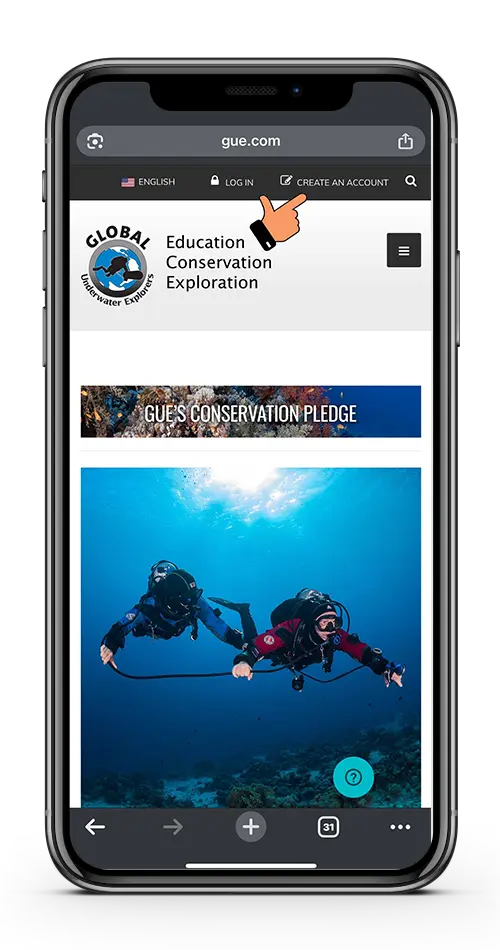
HOW TO CREATE AN ACCOUNT
Open your browser and open the link gue.com and click on CREATE AN ACCOUNT
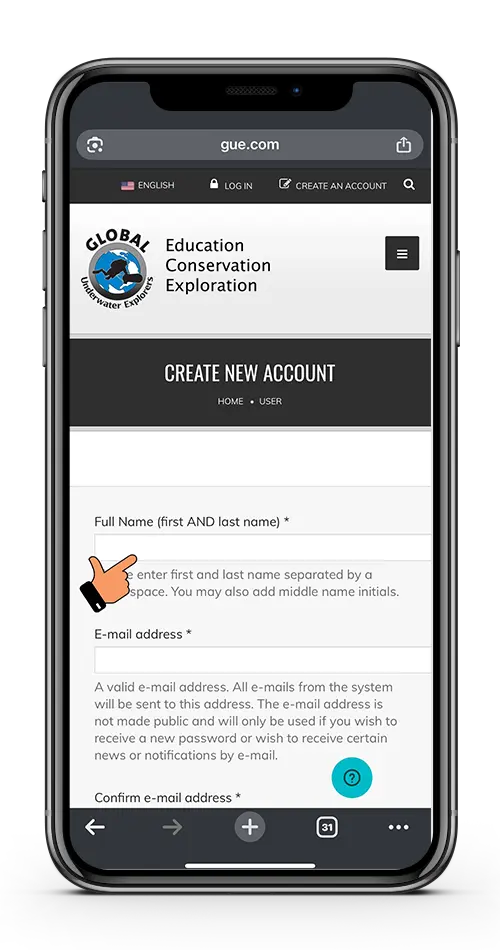
GUE ACCOUNT CREATION
- Fill in your particulars
- For email, use the same email provided when you first signed up for your GUE Course
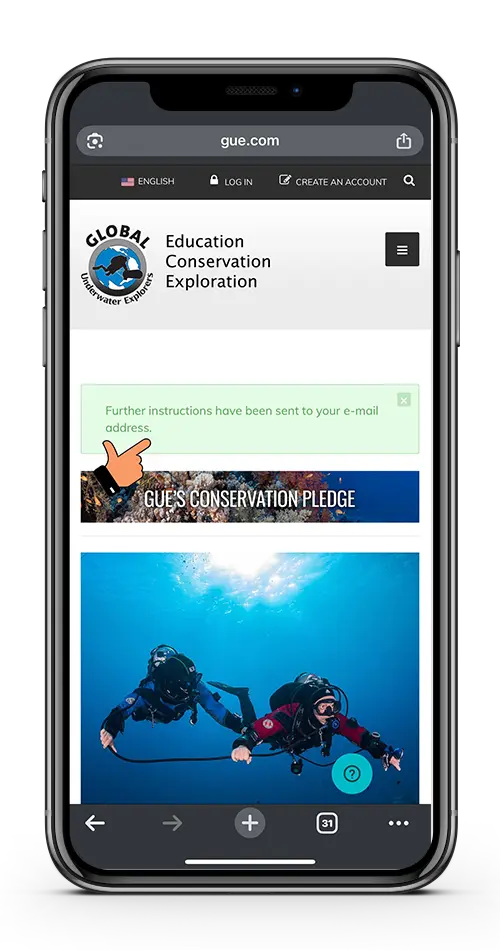
GUE ACCOUNT CREATED
- After account creation, you will receive an a confirmation.
- An official email from GUE will be sent to you.
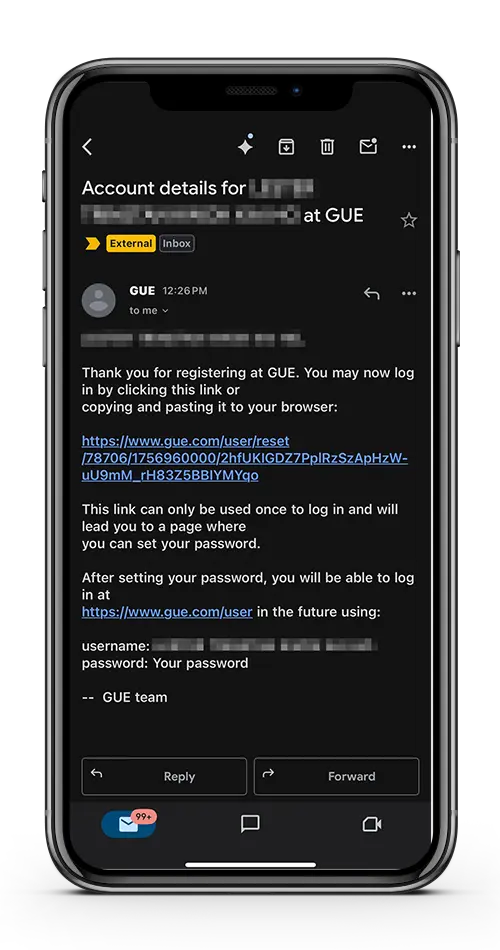
CHECK YOUR EMAIL
- Follow the link in your email
- You will be directed to a page to update your password for the first time.
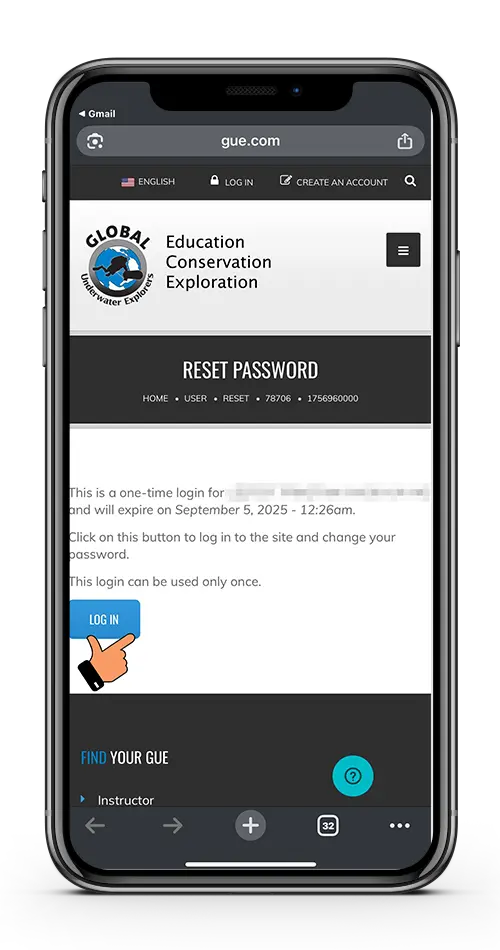
LOGIN TO CHANGE PASSWORD
- When a new page opens in your browser
- Click LOGIN to change your password
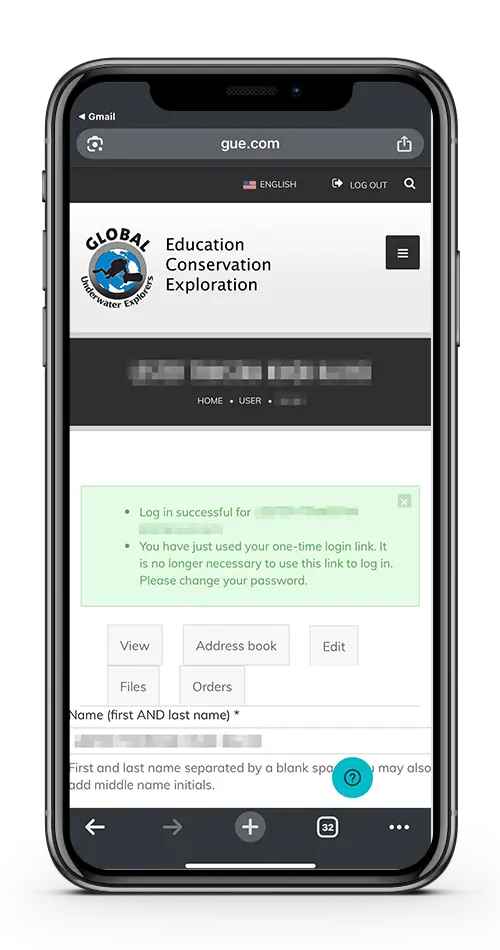
CHANGE PASSWORD
- Verify that your name is correct
- Submit the password change
- This password will be used for all eLearning and purchases with GUE
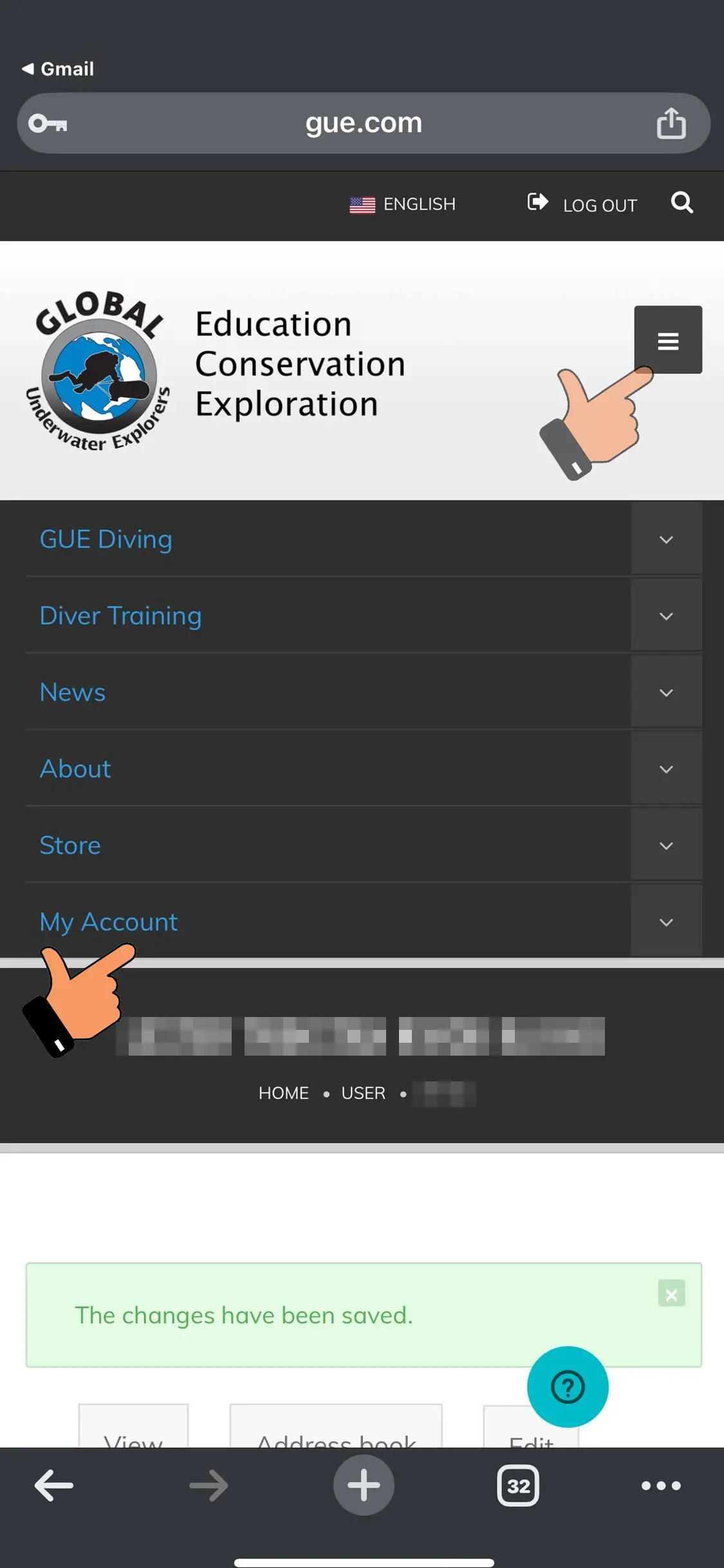
UPDATE YOUR ACCOUNT SETTINGS
- Update all your personal particulars
- Complete your profile setup
- Required before signing up for any courses
- Please follow the next image if you are unable to see how to update your profile
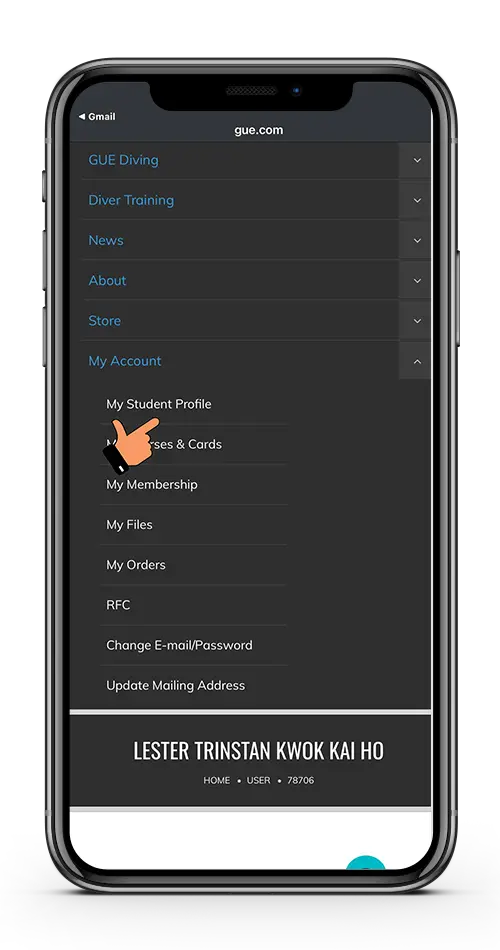
UPDATE YOUR STUDENT PROFILE
- The update Student Profile can be found in the menu under “MY ACCOUNT”
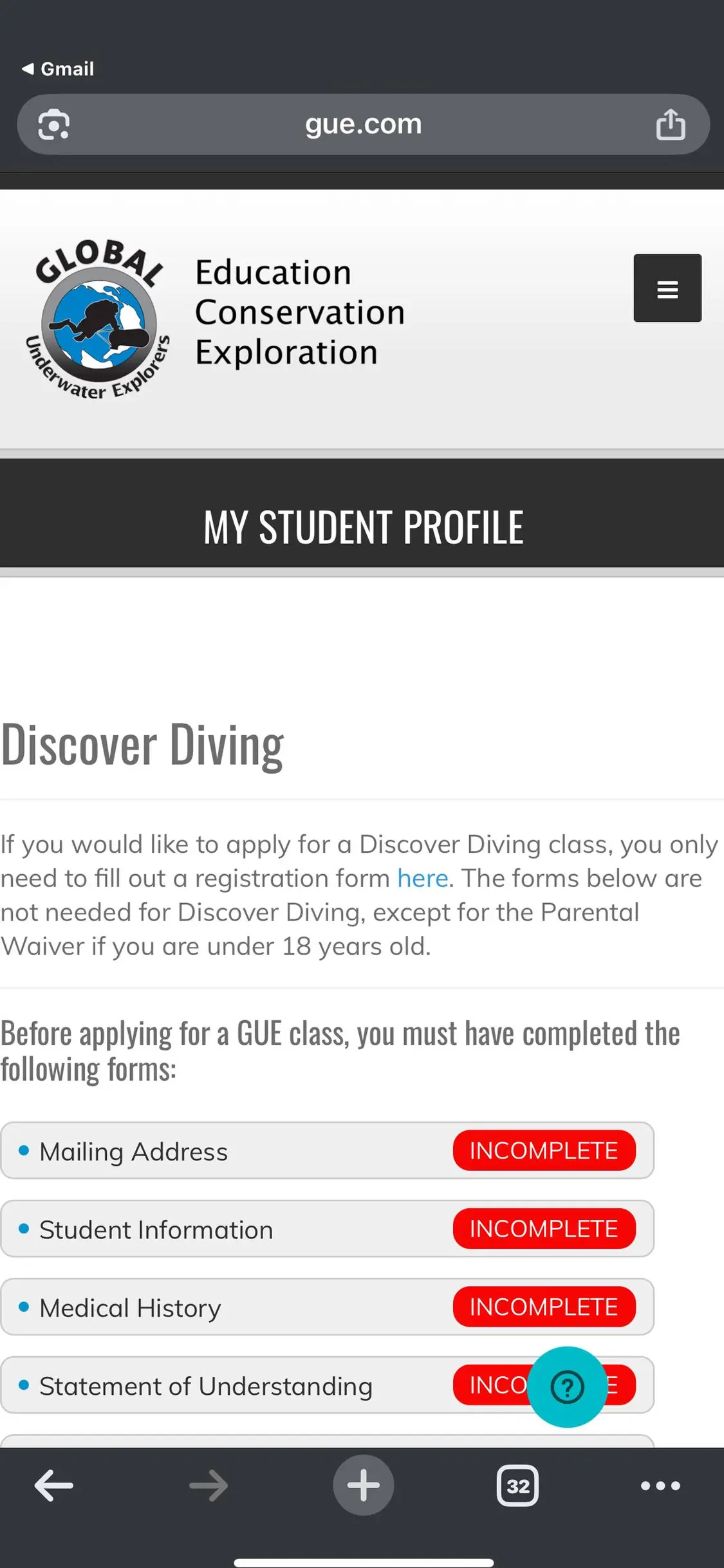
UPDATE YOUR STUDENT PROFILE
- Ensure that all information marked INCOMPLETE is filled in
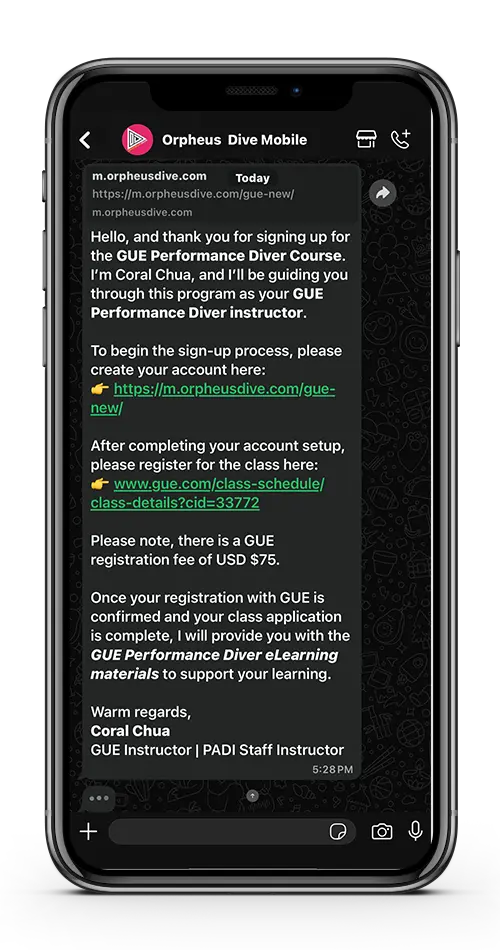
SIGN UP FOR CLASS
- You will receive a WhatsApp message from us
- Follow the link under Class Registration to register for the class
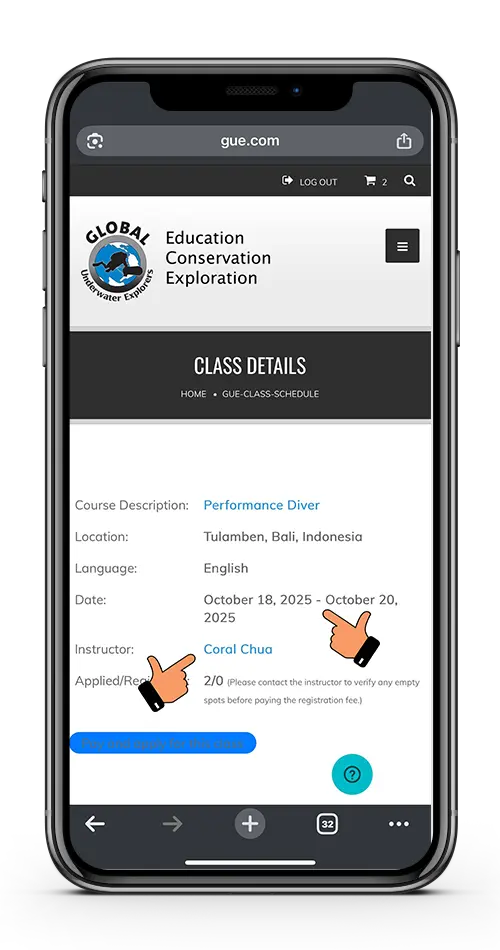
REGISTRATION FOR CLASS
Ensure the class you are signing up for matches the schedule you requested
GUE registration payments are made online via credit card
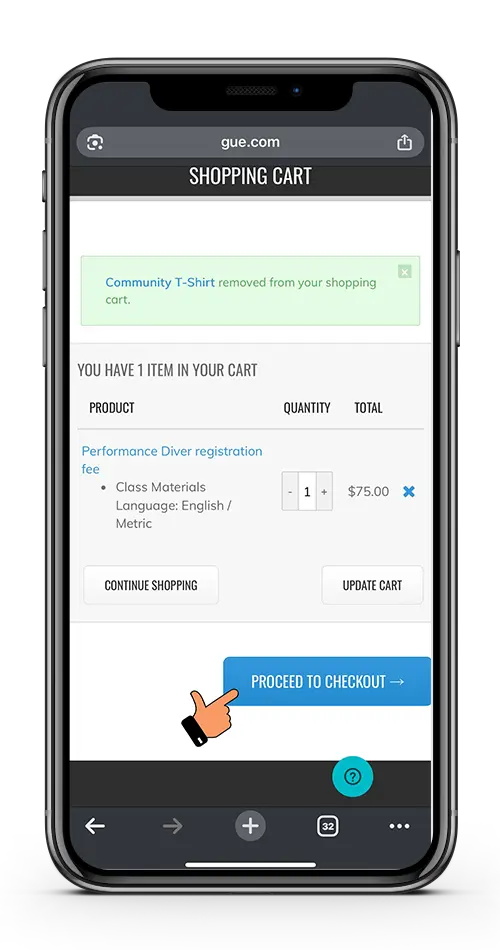
PAYMENTS FOR GUE REGISTRATION
- Ensure you complete checkout and make payment.